Essential Excel Concepts: Data Visualization
People like visuals—it is simple. This makes sense since it is easier to see patterns with charts rather than a table. However, we should not make charts just to make charts. There could be examples where tables are better than charts and vice versa. However, that is not the purpose for us in this section.
I am going to show how to create two charts for showing aggregated data by time and by category. I will also discuss some heuristics for chart selection in Excel. We will begin with data that is given by time periods. In this case, line graphs will be the correct choice to visualize the data.
Let us create a line graph together.
Here we have Sales data in table.
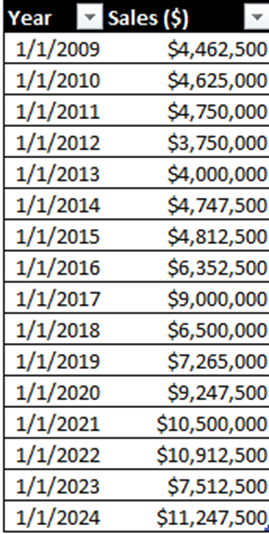
We can notice some patterns if we look closely. However, using a line graph, we can quickly see patterns rather than wasting our time looking at a table here.
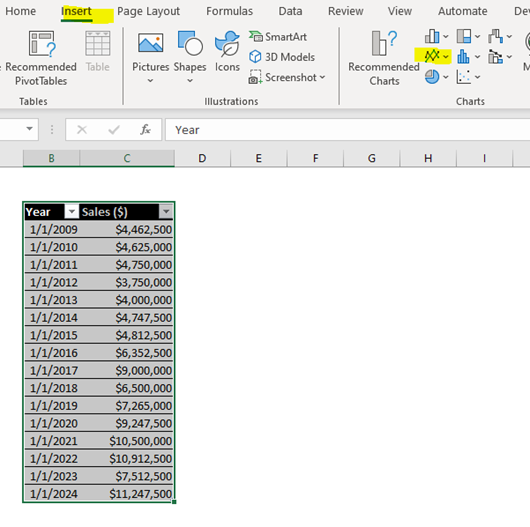
It is simple to create a line graph in Excel. First, we need to select/highlight the columns we want for our chart. In this example, we only have two columns, so we select the entire table. However, there will be instances where you will have a table with many columns to choose form.
Here we will use the Insert tab to select the line graph icon.
As we can see, we have a nice line chart where we can see trends in our data.

We can notice that we have growth since our company has been established in 2009. There are a few years where there is a dip in sales. However, the company recovered to continue to grow their numbers.
This is just the start of our analysis. However, it is a nice start. Let us now add some labels and format our chart.
One thing I do first is remove the gridlines in a chart. This makes the data cleaner for me to review. To do this, you can simply click on the gridlines in the chart and press delete.
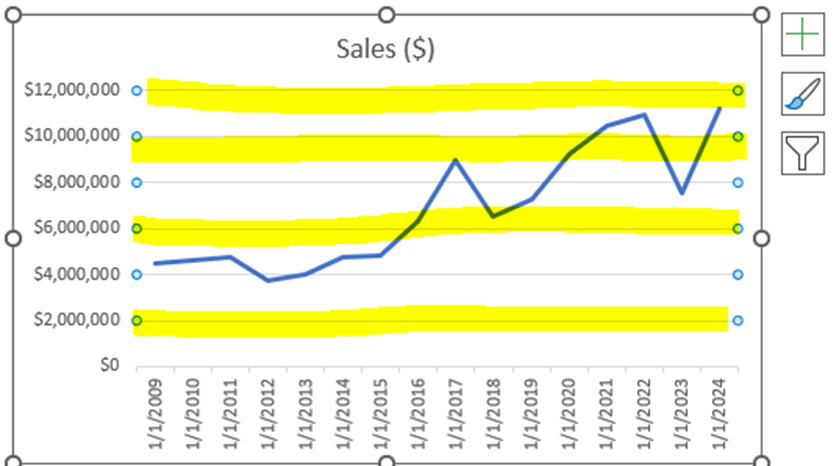
Here is the result.

Another quick thing we can do is add Data Labels to help with analysis. To do this, we can right-click on the line itself and add Data Labels.
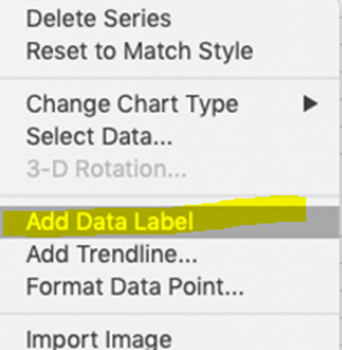
Here is the result.
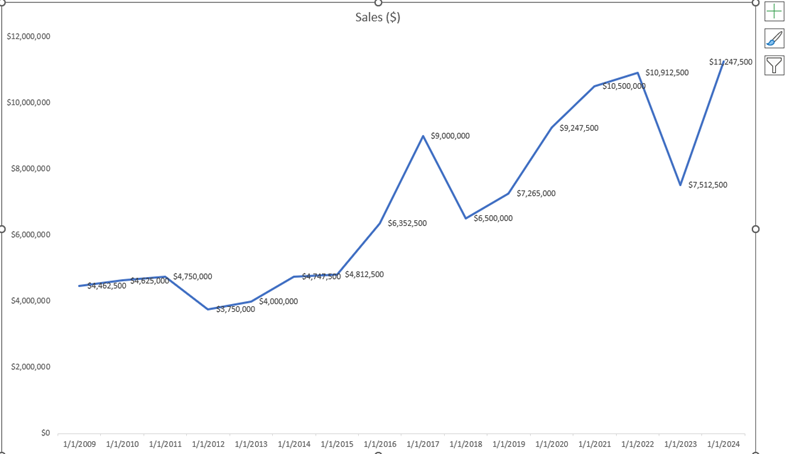
In this instance, data labels might make our chart cumbersome. But often data labels add extra value to your chart with a simple click. Since I think the chart looks more cluttered now, I am going to remove them. However, I wanted to show you how easy it is to add (and remove) data labels when you believe they add value to our visualization.
There is no one size fits all here.
Now I am going to change the Chart Title and add Axis Titles to make our visualization look more professional.
To update the title, I will simply double-click the word “Sales ($)” at the top the chart. I am going to change the title to Total Company Sales by Time to help the future viewer easily understand what our chart is trying to convey.
I could have used the + button as well to add a Chart Title. However, I wanted to show the double-click shortcut. I will now use the + icon to add Axis Titles to the chart.

Now I will add Year for the X Axis Title and Total Sales for the Y Axis Title to get the following chart. Notice I bolded the titles to help better read the values, which results in a clean visualization.

Now I will move on to show how to create a bar chart for data values group by categories.
Here we are going to go back out our dataset that displayed Sales result by Location to help summarize the results.

To create our chart, we are going to use a new Excel technique called Pivot Charts. Since our data set has many columns compared to our line graph example, it is easier to choose the Pivot Chart method. However, you can use the bar chart options on the Insert tab as well if you like.
Simply click inside your table then select Pivot Chart in the Insert tab.

Just like when creating a Pivot Table before, a window will open to select where to place the chart in a New Worksheet. Then click OK.

Add Location and Fiscal Year columns into the Axis and Values section in the PivotChart fields section.

The resulting chart will be created.
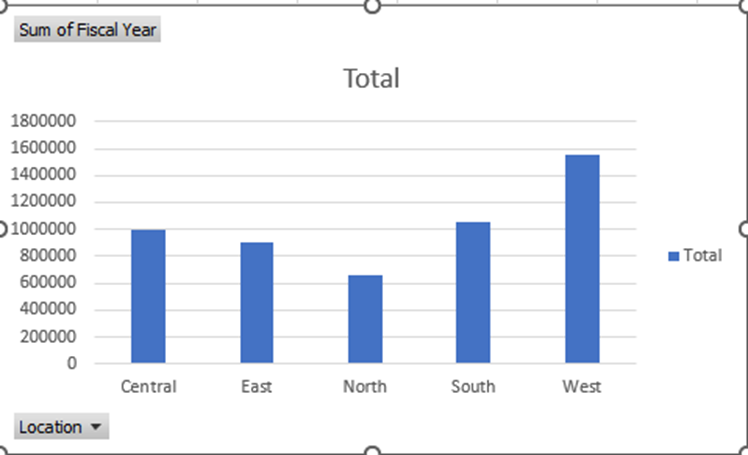
This chart is a wonderful starting point. However, we need to update the formatting to help our viewers interpret the visualization and make the chart more professional.
I will update the Chart Title, Axis Titles, remove Gridlines, and add Data Labels like we did before.
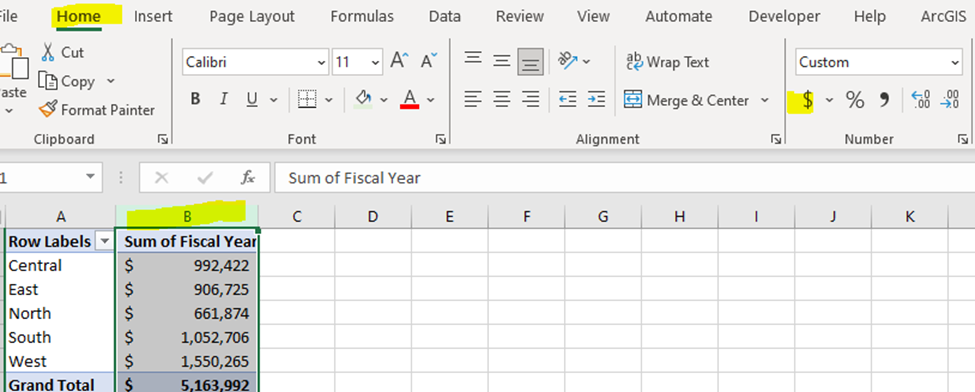
I also will update the data type to currency to show the values in US Dollars.
Recall, to update the data type, simply highlight the entire column and go to the Home tab to update.
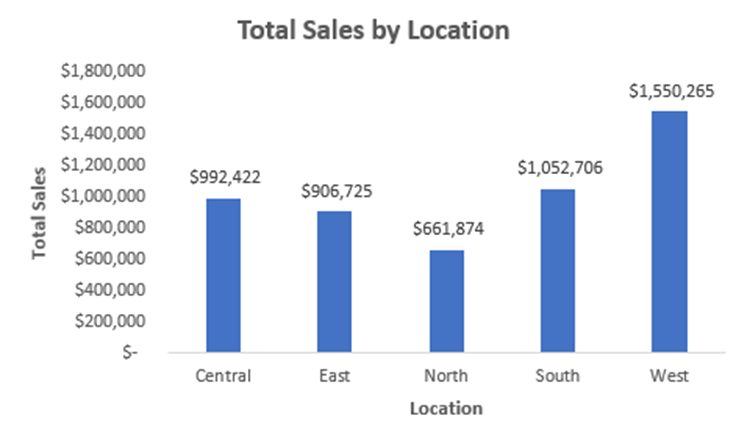
Here is the chart after our updates.
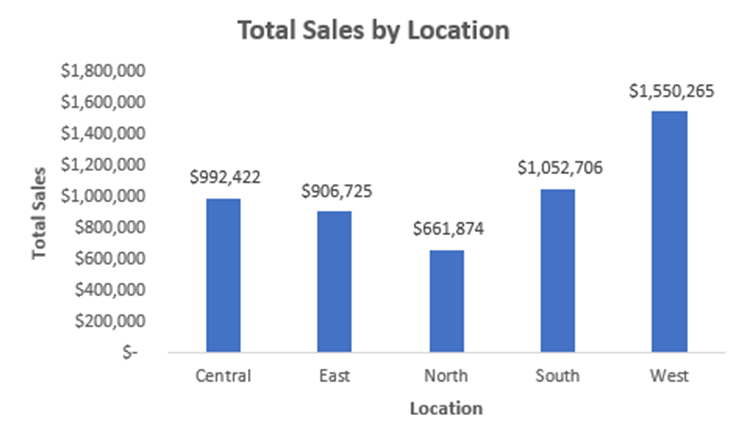
If you notice, I removed the legend that said Total as well as the field buttons. To accomplish this, I simply double-clicked the item and deleted it, or I can right-click the item to hide the result.
As you can see, our chart is clean and easier to read for our visualization viewers.
When we create charts in Excel, we need to know who our audience is and have them in mind. In this instance, adding Data Labels made more sense since the visualization’s values are small. This means we kept them in unlike in the line graph example.
To review, we started with data in tables, which was good and could be used if we had to. However, we turned that data into charts to help understand patterns to help us gain insights.
There are many other charting tools and visualizations that Excel has to offer. The possibilities are endless, but make sure you keep your audience in mind when selecting and creating visualizations.
We do not create visualization just to create visualizations. We create visualizations to serve a business purpose—to understand and summarize data to make data-back decisions to help solve problems.
Original Data Sets with corresponding charts are shown below to demonstrate the effectiveness of charts.
Which do you prefer the old tables with our data on the top or the data in the visualizations on the bottom?
Tables:


Visualizations:



Comments